
WikiFormatting
Table of Contents
Contents
Wiki markup is a core feature in Trac, tightly integrating all the other parts of Trac into a flexible and powerful whole.
Trac has a built-in small and powerful wiki rendering engine. This wiki engine implements a growing subset of the commands from other popular Wikis, especially MoinMoin and WikiCreole.
This page will give you an in-depth explanation of the wiki markup available anywhere WikiFormatting is allowed.
The sections below provide an overview for the most common syntax, each link in the Category column will lead you to the more detailed explanation later in this page.
A few other wiki pages present the advanced features of the Trac wiki markup in more depth:
- TracLinks covers all the possible ways to refer precisely to any Trac resource or parts thereof.
- WikiPageNames covers the various names a wiki page can take, whether in CamelCase or not.
- WikiMacros lists the macros available for generating dynamic content.
- WikiProcessors and WikiHtml details how parts of the wiki text can be processed in special ways.
- AdvancedWikiOperations provides some operations in uncommon or administrative scenarios.
Common wiki markup
| Category | Wiki Markup | Display | ||||
|---|---|---|---|---|---|---|
'''bold''', ''italic'', '''''Wikipedia style'''''
| bold, italic, Wikipedia style | |||||
`monospaced (''other markup ignored'')`
| monospaced (''other markup ignored'')
| |||||
**bold**, //italic//, **//!WikiCreole style//**
| bold, italic, WikiCreole style | |||||
| Headings | == Level 2 === Level 3 ^([#hn note])^ | Level 2Level 3 (note) | ||||
| Paragraphs | First paragraph on multiple lines. Second paragraph. | First paragraph on multiple lines. Second paragraph. | ||||
| Lists | * bullet list
on multiple lines
1. nested list
a. different numbering
styles
|
| ||||
 term:: definition on
        multiple lines
|
| |||||
| Preformatted Text | {{{
multiple lines, ''no wiki''
      white space respected
}}}
| multiple lines, ''no wiki''
white space respected
| ||||
| Blockquotes | if there's some leading space the text is quoted |
| ||||
| Discussion Citations | >> ... (I said) > (he replied) |
| ||||
| Tables | ||= Table Header =|| Cell || |||| (details below) || |
| ||||
http://trac.edgewall.org
| http://trac.edgewall.org | |||||
WikiFormatting (CamelCase)
| WikiFormatting (CamelCase) | |||||
wiki:WikiFormatting, wiki:"WikiFormatting"
| wiki:WikiFormatting, wiki:"WikiFormatting" | |||||
#1 (ticket), [1] (changeset), {1} (report)
| #1 (ticket), [1] (changeset), {1} (report) | |||||
ticket:1, ticket:1#comment:1
| ticket:1, ticket:1#comment:1 | |||||
Ticket [ticket:1], [ticket:1 ticket one]
| Ticket 1, ticket one | |||||
Ticket [[ticket:1]], [[ticket:1|ticket one]]
| Ticket 1, ticket one | |||||
[=#point1 (1)] First...
| (1) First… | |||||
see [#point1 (1)]
| see (1) | |||||
!'' doubled quotes
| '' doubled quotes | |||||
!wiki:WikiFormatting, !WikiFormatting
| wiki:WikiFormatting, WikiFormatting | |||||
`{{{-}}}` triple curly brackets
| {{{-}}} triple curly brackets
| |||||
| Images | [[Image(link)]] | 
| ||||
[[MacroList(*)]] | (short list of all available macros) | |||||
[[Image?]] | (help for the Image macro) | |||||
| Processors | {{{
#!div style="font-size: 80%"
Code highlighting:
{{{#!python
hello = lambda: "world"
}}}
}}}
| Code highlighting: hello = lambda: "world" | ||||
| Comments | {{{#!comment
Note to Editors: ...
}}}
| |||||
| Miscellaneous | Line [[br]] break Line \\ break ---- |
Line | ||||
Font Styles
The Trac wiki supports the following font styles:
| Wiki Markup | Display |
|---|---|
 * '''bold''',
   ''' triple quotes !'''
   can be bold too if prefixed by ! ''',
 * ''italic''
 * '''''bold italic''''' or ''italic and
   ''' italic bold ''' ''
 * __underline__
 * {{{monospace}}} or `monospace`
   (hence `{{{` or {{{`}}} quoting)
 * ~~strike-through~~
 * ^superscript^
 * ,,subscript,,
 * **also bold**, //italic as well//,
   and **'' bold italic **'' //(since 0.12)//
 * [[span(style=color: #FF0000, a red text )]]
|
|
Notes:
{{{...}}}and`...`commands not only select a monospace font, but also treat their content as verbatim text, meaning that no further wiki processing is done on this text.!tells wiki parser to not take the following characters as wiki format, so pay attention to put a space after !, e.g. when ending bold.- all the font styles marks have to be used in opening/closing pairs,
and they must nest properly; in particular, an
''italic can't be paired with a//one, and'''can't be paired with**.
Headings
You can create heading by starting a line with one up to six equal characters ("=") followed by a single space and the headline text.
The headline text can be followed by the same number of "=" characters, but this is not mandatory. That is, === Section3 === is identical to === Section3.
Finally, the heading might optionally be followed by an explicit id. If not, an implicit but nevertheless readable id will be generated.
| Wiki Markup | Display |
|---|---|
= Heading = == Subheading === About ''this'' === === Explicit id === #using-explicit-id-in-heading == Subheading #sub2 | HeadingSubheadingAbout thisExplicit idSubheading |
Paragraphs
A new text paragraph is created whenever two blocks of text are separated by one or more empty lines.
A forced line break can also be inserted, using:
| Wiki Markup | Display |
|---|---|
Line 1[[BR]]Line 2 Paragraph one Paragraph two |
|
Lists
The wiki supports both ordered/numbered and unordered lists.
Example:
| Wiki Markup | Display |
|---|---|
 * Item 1
   * Item 1.1
      * Item 1.1.1
      * Item 1.1.2
      * Item 1.1.3
   * Item 1.2
 * Item 2
- items can start at the beginning of a line
  and they can span multiple lines
  - be careful though to continue the line
  with the appropriate indentation, otherwise
that will start a new paragraph...

 1. Item 1
   a. Item 1.a
   a. Item 1.b
      i. Item 1.b.i
      i. Item 1.b.ii
 1. Item 2
And numbered lists can also be restarted
with an explicit number:
 3. Item 3
|
that will start a new paragraph…
And numbered lists can also be restarted with an explicit number:
|
Definition Lists
The wiki also supports definition lists.
| Wiki Markup | Display |
|---|---|
llama:: some kind of mammal, with hair ppython:: some kind of reptile, without hair (can you spot the typo?) |
|
Note that you need a space in front of the defined term.
Preformatted Text
Block containing preformatted text are suitable for source code snippets, notes and examples. Use three curly braces wrapped around the text to define a block quote. The curly braces need to be on a separate line.
| Wiki Markup | Display |
|---|---|
{{{
def HelloWorld():
    print '''Hello World'''
}}}
| def HelloWorld():
print '''Hello World'''
|
Note that this kind of block is also used for selecting lines that should be processed through WikiProcessors.
Blockquotes
In order to mark a paragraph as blockquote, indent that paragraph with two spaces.
| Wiki Markup | Display |
|---|---|
Paragraph This text is a quote from someone else. | Paragraph
|
Discussion Citations
To delineate a citation in an ongoing discussion thread, such as the ticket comment area, email-like citation marks (">", ">>", etc.) may be used.
| Wiki Markup | Display |
|---|---|
>> Someone's original text > Someone else's reply text > - which can be any kind of Wiki markup My reply text |
My reply text |
Tables
Simple Tables
Simple tables can be created like this:
| Wiki Markup | Display | ||||||
|---|---|---|---|---|---|---|---|
||Cell 1||Cell 2||Cell 3|| ||Cell 4||Cell 5||Cell 6|| |
|
Cell headings can be specified by wrapping the content in a pair of '=' characters. Note that the '=' characters have to stick to the cell separators, like this:
| Wiki Markup | Display | |||||||||
|---|---|---|---|---|---|---|---|---|---|---|
|| ||= stable =||= latest =|| ||= 0.10 =|| 0.10.5 || 0.10.6dev|| ||= 0.11 =|| 0.11.6 || 0.11.7dev|| |
|
Finally, specifying an empty cell means that the next non empty cell will span the empty cells. For example:
| Wiki Markup | Display | ||||||||||||
|---|---|---|---|---|---|---|---|---|---|---|---|---|---|
|| 1 || 2 || 3 || |||| 1-2 || 3 || || 1 |||| 2-3 || |||||| 1-2-3 || |
| ||||||||||||
Note that if the content of a cell "sticks" to one side of the cell and only one, then the text will be aligned on that side. Example:
| Wiki Markup | Display | ||||||||||||||||
|---|---|---|---|---|---|---|---|---|---|---|---|---|---|---|---|---|---|
||=Text =||= Numbers =|| ||left align || 1.0|| || center || 4.5|| || right align|| 4.5|| || default alignment || 2.5|| ||default|| 2.5|| || default || 2.5|| || default || 2.5|| |
|
If contrary to the example above, the cells in your table contain more text, it might be convenient to spread a table row over multiple lines of markup. The \ character placed at the end of a line after a cell separator tells Trac to not start a new row for the cells on the next line.
| Wiki Markup | |||
|---|---|---|---|
|| this is column 1 [http://trac.edgewall.org/newticket new ticket] || \ || this is column 2 [http://trac.edgewall.org/roadmap the road ahead] || \ || that's column 3 and last one || | |||
| Display | |||
|
Complex Tables
| ') for tables described above are not enough for your needs, you can create more elaborate tables by using WikiProcessor based tables. |
Links
Hyperlinks are automatically created for WikiPageNames and URLs. WikiPageLinks can be disabled by prepending an exclamation mark ('!'), such as !WikiPageLink.
| Wiki Markup | Display |
|---|---|
TitleIndex, http://www.edgewall.com/, !NotAlink | TitleIndex, http://www.edgewall.com/, NotAlink |
Links can be given a more descriptive title by writing the link followed by a space and a title and all this inside square brackets. If the descriptive title is omitted, then the explicit prefix is discarded, unless the link is an external link. This can be useful for wiki pages not adhering to the WikiPageNames convention.
| Wiki Markup | Display |
|---|---|
* [http://www.edgewall.com Edgewall Software] * [wiki:TitleIndex Title Index] * [wiki:TitleIndex] * [wiki:ISO9000] |
Following the WikiCreole trend, the descriptive title can also be specified by writing the link followed by a pipe ('|') and a title and all this inside double square brackets.
* [[http://www.edgewall.com|Edgewall Software]] * [[wiki:TitleIndex|Title Index]] or even [[TitleIndex|Title Index]] * [[wiki:TitleIndex]] ''' but not ![[TitleIndex]]! ''' * [[ISO9000]] |
|
Note: the WikiCreole style for links is quick to type and certainly looks familiar as it is the one used on Wikipedia and in many other wikis. Unfortunately it conflicts with the syntax for macros.
So in the rare case when you need to refer to a page which is named after a macro (typical examples being TitleIndex, InterTrac and InterWiki), by writing [[TitleIndex]] you will actually call the macro instead of linking to the page.
Trac Links
Wiki pages can link directly to other parts of the Trac system. Pages can refer to tickets, reports, changesets, milestones, source files and other Wiki pages using the following notations:
| Wiki Markup | Display |
|---|---|
 * Tickets: #1 or ticket:1
 * Reports: {1} or report:1
 * Changesets: r1, [1] or changeset:1
 * ...
 * targeting other Trac instances,
   so called InterTrac links:
   - Tickets: #Trac1 or Trac:ticket:1
   - Changesets: [Trac1] or Trac:changeset:1
|
There are many more flavors of Trac links, see TracLinks for more in-depth information and a reference for all the default link resolvers.
Setting Anchors
An anchor, or more correctly speaking, an anchor name can be added explicitly at any place in the Wiki page, in order to uniquely identify a position in the document:
[=#point1]
This syntax was chosen to match the format for explicitly naming the header id documented above. For example:
== Long title == #title
It is also very close to the syntax for the corresponding link to that anchor:
[#point1]
Optionally, a label can be given to the anchor:
[[=#point1 '''Point 1''']]
| Wiki Markup | Display |
|---|---|
[#point2 jump to the second point] ... Point2: [=#point2] Jump here |
|
For more complex anchors (eg when a custom title is wanted), you can use the Span macro: [[span(id=point2, class=wikianchor, title=Point 2, ^(2)^)]].
Escaping Links, WikiPageNames and other Markup
You may avoid making hyperlinks out of TracLinks by preceding an expression with a single exclamation mark ('!').
| Wiki Markup | Display |
|---|---|
 !NoHyperLink
 !#42 is not a link
Various forms of escaping for list markup: ^^- escaped minus sign \\ ^^1. escaped number \\ ^^* escaped asterisk sign |
Various forms of escaping for list markup:
|
Images
Urls ending with .png, .gif or .jpg are no longer automatically interpreted as image links, and converted to <img> tags.
You now have to use the [[Image]] macro. The simplest way to include an image is to upload it as attachment to the current page, and put the filename in a macro call like [[Image(picture.gif)]].
In addition to the current page, it is possible to refer to other resources:
[[Image(wiki:WikiFormatting:picture.gif)]](referring to attachment on another page)[[Image(ticket:1:picture.gif)]](file attached to a ticket)[[Image(htdocs:picture.gif)]](referring to a file inside the environmenthtdocsdirectory)[[Image(source:/trunk/trac/htdocs/trac_logo_mini.png)]](a file in repository)
| Wiki Markup | Display |
|---|---|
[[Image(htdocs:../common/trac_logo_mini.png)]] |
|
See WikiMacros for further documentation on the [[Image()]] macro, which has several useful options (title=, link=, etc.)
Macros
Macros are custom functions to insert dynamic content in a page.
| Wiki Markup | Display |
|---|---|
[[RecentChanges(Trac,3)]] |
Jan 23, 2019
|
See WikiMacros for more information, and a list of installed macros.
The detailed help for a specific macro can also be obtained more directly by appending a "?" to the macro name.
| Wiki Markup | Display |
|---|---|
[[MacroList?]] |
|
Processors
Trac supports alternative markup formats using WikiProcessors. For example, processors are used to write pages in reStructuredText or HTML.
| Wiki Markup | Display | |||||||
|---|---|---|---|---|---|---|---|---|
| ||||||||
{{{
#!html
<h1 style="text-align: right; color: blue">
 HTML Test
</h1>
}}}
| HTML Test | |||||||
| ||||||||
{{{
#!python
class Test:

    def __init__(self):
        print "Hello World"
if __name__ == '__main__':
   Test()
}}}
| class Test: def __init__(self): print "Hello World" if __name__ == '__main__': Test() | |||||||
| ||||||||
{{{#!th rowspan=4 align=justify
With the `#td` and `#th` processors,
table cells can contain any content:
}}}
|----------------
{{{#!td
  - lists
  - embedded tables
  - simple multiline content
}}}
|----------------
{{{#!td
As processors can be easily nested,
so can be tables:
  {{{#!th
  Example:
  }}}
  {{{#!td style="background: #eef"
  || must be at the third level now... ||
  }}}
}}}
|----------------
{{{#!td
Even when you don't have complex markup,
this form of table cells can be convenient
to write content on multiple lines.
}}}
|
| |||||||
See WikiProcessors for more information.
Comments
Comments can be added to the plain text. These will not be rendered and will not display in any other format than plain text.
| Wiki Markup | Display |
|---|---|
Nothing to
{{{
#!comment
Your comment for editors here
}}}
see.
|
|
Miscellaneous
| Wiki Markup | Display |
|---|---|
| Four or more dashes will be replaced by a horizontal line (<HR>) See? |
|
"macro" style
WikiCreole style |
Trac Wiki Extras
The following additions are added by the TracWikiExtras Plugin, which has been installed and enabled for this Trac.
Rich Wiki Boxes
Wiki Boxes
Content
To highlight a section on a wiki page, use the box, rbox, newsbox and
imagebox WikiProcessors:
{{{#!box type align=... width=...
...
}}}

{{{#!rbox type width=...
...
}}}

{{{#!newsbox
...
}}}

{{{#!imagebox
...
}}}
For shorter content, macro syntax may be preferable:
[[box(..., type=..., align=..., width=...)]]

[[rbox(..., type=..., width=...)]]

[[newsbox(...)]]

[[imagebox(...)]]
Following sections demonstrates each box and how to use the parameters.
box and rbox
The normal box looks like this, and is as wide as the page.
box
This is a normal box.
Subheading
Some text
Second Heading 1
Some text
{{{#!box
= box
This is a normal box.
== Subheading
Some text
= Second Heading 1
Some text
}}}
An rbox is aligned to the right of the page, with a fixed width.
rbox
An rbox is aligned to the right of the page, with a
fixed with. Use this for side notes, references etc.
{{{#!rbox
= rbox
An `rbox` is aligned to the right of the page, with a
fixed with. Use this for side notes, references etc.
}}}
Box types
The box type can optionally be stated, either as a flag or as a parameter
type=.... Here are all box types demonstrated. When box and rbox
co-exist, they will share the page width.
configure, configuration, tool
This box is created by the wiki markup
{{{#!rbox configure
...
}}}
See the box description to the left for more details.
details, look, magnifier
critical, stop
bug, error, important, warning
information, note
help, question
tips
chat, discussion, talk
ok, good, yes
bad, no, nok
configure, configuration, tool
White boxes are part of the normal content.
This box is created by the wiki markup
{{{#!box configure
...
}}}
or
{{{#!box type=configure
...
}}}
Alternatively, configuration or tool may be used too, as well as a unique
abbreviation like config.
details, look, magnifier
critical, stop
Red boxes contain some really important information! Pay close attention to these to avoid running into problems.
bug, error, important, warning
information, note
Yellow boxes contain essential, but not critical information.
help, question
tips
comment
Blue boxes contain elaborative information; they are used to elaborate on-going work and should not, ideally, be left behind when work is done.
chat, discussion, talk
ok, good, yes
bad, no, nok
Specify width
Use the width parameter to set the width of the box:
Small box
{{{#!box width=6em
Small box
}}}
Use width=auto to auto-size right-aligned boxes:
Auto-sized rbox
{{{#!rbox width=auto
Auto-sized rbox
}}}
(width=auto does not have this effect on box since this is the default
width for it, which is the whole page width.)
Center-aligned box
Boxes can be center-aligned too. Default width is always auto, which causes
the box to become as narrow as possible.
Center-aligned box
{{{#!box align=center
Center-aligned box
}}}
Define width, or apply a custom style, for widening the centered box.
Width:
Center-aligned box with defined width
{{{#!box align=center width=14em
Center-aligned box with defined width
}}}
Custom style:
Center-aligned box with no white space
wrapping
{{{#!box align=center style="white-space:nowrap"
Center-aligned box with no white space\\
wrapping
}}}
Left-aligned box
Left-aligned box
Boxes can be left-aligned too, text will flow to the right of it. The width
will adapt to its content (i.e. default width is auto).
{{{#!box align=left
Left-aligned box
}}}
Custom styling
Customizable
You can also apply some custom styling to text boxes.
{{{
#!box type=config style="background-color:white; border:2pt inset gray; max-width:350px; border-radius:0; box-shadow:none"
= Customizable
You can also apply some custom styling to text boxes.
}}}
newsbox
A newsbox is very simple to use.
Headline
A newsbox is aligned to the right of the page,
with a fixed with. Use this for announcements etc.
{{{#!newsbox
= Headline
A `newsbox` is aligned to the right of the page,
with a fixed with. Use this for announcements etc.
}}}
A newsbox accepts the same parameters as an ordinary box, but are normally not used.
imagebox
Use the imagebox to show a single image with caption.
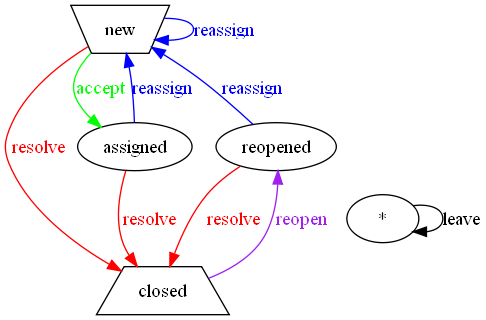
Original ticket workflow
{{{#!imagebox
[[Image(htdocs:../common/guide/original-workflow.png, border=1, link=)]]

Original ticket workflow
}}}
An imagebox accepts the same parameters as an ordinary box, but are normally not used.
Macro syntax examples
The macro syntax may be preferable for shorter content:
A short comment
[[rbox(A short comment)]]
The type can be set as a parameter:
A short comment
[[rbox(A short comment, type=comment)]]
Alignment too:
[[box(Learn how to use boxes, align=center)]]
Learn how to use boxes
Finally, width as well:
Auto-sized rbox
[[rbox(Auto-sized rbox, width=auto)]]
Macro instructions
Here follows the built in macro instructions concerning boxes, as they appear on WikiMacros.
[[box]]
View wiki text in a box.
Syntax:
{{{#!box type align=... width=...
wiki text
}}}
or preferably when content is short:
[[box(wiki text, type=..., align=..., width=...)]]
where
typeis an optional flag, or parameter, to call for attention depending on type of matter. Whentypeis set, the box is decorated with an icon (except fornews) and colored, depending on what urgency the type represents:
Urgency (box color) type warn (red) bug,critical,error,important,stop,warninghighlight (yellow) help,information,note,question,tipselaborate (blue) bad,chat,comment,discussion,good,no,nok,ok,talk,yesnews (green) newsnormal (white) configuration,configure,details,look,magnifier,tool
typemay be abbreviated as long as the abbreviation is unique for one of the keywords above.
alignis optionally one ofright,leftorcenter. Therboxmacro is an alias foralign=right.widthis optional and sets the width of the box (defaultsautoexcept for right aligned boxes which defaults a fixed width).widthshould be set whenalign=centerfor proper results.
Examples:
{{{#!box warn
= Warning
Beware of the bugs
}}}

[[box(Beware of the bugs, type=warn)]]
A style parameter is also accepted, to allow for custom
styling of the box. See also the rbox, newsbox and
imagebox macros (processors).
[[imagebox]]
Present a centered box suitable for one image.
Syntax:
{{{#!imagebox
wiki text
}}}
This box is typically used together with the Image macro:
{{{#!imagebox
[[Image(file)]]

Caption
}}}
Note that the size parameter of the Image macro may not
behave as expected when using relative sizes (%).
The following parameters are also accepted:
align— One ofright,leftorcenter(defaultscenter).width— Set the width of the box (defaultsautoexcept for right aligned boxes which defaults a fixed width).style— Custom styling of the box.
See also the box, rbox and newsbox macros (processors).
[[lbox]]
View a left-aligned box. (This is a shorthand for
box align=left)
Syntax:
{{{#!lbox type width=...
wiki text
}}}
or preferably when content is short:
[[lbox(wiki text, type=..., width=...)]]
where
typeis an optional flag, or parameter, to call for attention depending on type of matter. Whentypeis set, the box is decorated with an icon (except fornews) and colored, depending on what urgency the type represents:
Urgency (box color) type warn (red) bug,critical,error,important,stop,warninghighlight (yellow) help,information,note,question,tipselaborate (blue) bad,chat,comment,discussion,good,no,nok,ok,talk,yesnews (green) newsnormal (white) configuration,configure,details,look,magnifier,tool
typemay be abbreviated as long as the abbreviation is unique for one of the keywords above.
widthis optional and sets the width of the box (defaults a fixed width). Usewidth=autofor an automatically sized box.
Examples:
{{{#!lbox warn
= Warning
Beware of the bugs
}}}

[[lbox(Beware of the bugs, type=warn)]]
A style parameter is also accepted, to allow for custom
styling of the box. See also the box, newsbox and
imagebox macros (processors).
[[newsbox]]
Present a news box to the right. (This is a shorthand for
rbox news)
Syntax:
{{{#!newsbox
wiki text
}}}
The following parameters are also accepted:
width— Set the width of the box (defaults a fixed width).style— Custom styling of the box.
See also the box, rbox and imagebox macros (processors).
(Comment: This box corresponds to the well-known
NewsFlash macro.)
[[rbox]]
View a right-aligned box. (This is a shorthand for
box align=right)
Syntax:
{{{#!rbox type width=...
wiki text
}}}
or preferably when content is short:
[[rbox(wiki text, type=..., width=...)]]
where
typeis an optional flag, or parameter, to call for attention depending on type of matter. Whentypeis set, the box is decorated with an icon (except fornews) and colored, depending on what urgency the type represents:
Urgency (box color) type warn (red) bug,critical,error,important,stop,warninghighlight (yellow) help,information,note,question,tipselaborate (blue) bad,chat,comment,discussion,good,no,nok,ok,talk,yesnews (green) newsnormal (white) configuration,configure,details,look,magnifier,tool
typemay be abbreviated as long as the abbreviation is unique for one of the keywords above.
widthis optional and sets the width of the box (defaults a fixed width). Usewidth=autofor an automatically sized box.
Examples:
{{{#!rbox warn
= Warning
Beware of the bugs
}}}

[[rbox(Beware of the bugs, type=warn)]]
A style parameter is also accepted, to allow for custom
styling of the box. See also the box, newsbox and
imagebox macros (processors).
Icons
Wiki Icons
More than 3.300 icons are available using the following wiki markup:
(|name, size|)
This shows a named icon that can be in line with text, where
nameis the name of the icon.sizeis optionally one ofsmall,mediumorlargeor an abbreviation thereof (defaultssmall).
Examples:
Wiki markup Display and
is like


When name contains a pattern character (* or ?), a 2-column preview of
matching icons is presented, which should mainly be used for finding and
selecting an icon during wiki page editing in side-by-side mode. (The number of
displayed icons is limited to prevent exhaustive network traffic. Use
ShowIcons for static presentation of available icons.)
Example of the 2-column search preview:
(|arrow*|)
Showing 32 of 122 small icons matching arrow*

arrow 
arrow-in 
arrow-000-medium 
arrow-in-out 
arrow-045 
arrow-join 
arrow-090 
arrow-join-090 
arrow-135 
arrow-merge 
arrow-135-medium 
arrow-move 
arrow-180 
arrow-out 
arrow-225 
arrow-repeat 
arrow-225-medium 
arrow-resize 
arrow-270 
arrow-return 
arrow-315 
arrow-skip 
arrow-315-medium 
arrow-split 
arrow-branch 
arrow-switch 
arrow-branch-000-left 
arrow-transition 
arrow-circle 
arrow-transition-090 
arrow-curve 
arrow-turn
Narrow down your search until you find the wanted icon.
The Icon macro is equivalent to this wiki markup.
Smileys
Following character sequences are defined as smileys and are automatically displayed as icons:

(!) 
8-) 
:-P :P 
(*) 
8-O B-O 
:-X :X (./) 
:( :-( 
:-o :o 
(?) 
:) :-) =) 
:-| :| 
(I) 
:)) :-)) 
;) ;-) 
(N) (NOK) 
:-? :? 
>:> 
(OK) (Y) 
:-D :D 
B-) 
(X) 
:-O :O
Example:
Wiki markup Display This is a great feature
Prefixing a smiley character sequence with an exclamation mark (!) prevents
it from being interpreted as a smiley.
The list above was generated by the ShowSmileys macro. See also TracIni, for configuration of smileys.
ShowIcons macro
Use the ShowIcons macro to display a list of available icons. (The number of displayed icons is limited to prevent exhaustive network traffic.)
Syntax:
[[ShowIcons(cols, name-pattern, size, header, limit)]]
where
colsis optionally the number of columns in the table (defaults 3).name-patternselects which icons to list (use*and?).sizeis optionally one ofsmall,mediumorlargeor an abbreviation thereof (defaultssmall).headeris optionally one ofheaderandnoheaderor an abbreviation thereof (header is displayed by default)limitspecifies an optional upper limit of number of displayed icons.
The last three optional parameters (size, header and limit) can be stated
in any order.
Example:
[[ShowIcons(smile*)]]              # all small icons matching smile*
[[ShowIcons(4, smile*)]]           # four columns
[[ShowIcons(smile*, 10)]]          # limit to 10 icons
[[ShowIcons(smile*, 10, nohead)]]  # no header
[[ShowIcons(smile*, m)]]           # medium-size
Another example:
[[ShowIcons(*, 26)]]
Showing 26 of 3474 small icons matching *

abacus 
jar 
safe 
baggage-cart 
key 
table 
cactus 
language 
ui-accordion 
dashboard 
mac-os 
validation 
ear 
na 
wall 
feed 
occluder 
xfn 
game 
paint-brush yin-yang 
haiku question 
zodiac 
ice 
radar
Icon Library License Terms
The icon library contained herein is composed of the
Fugue icon library with additional icons,
and can be used for any commercial or personal projects, but you may not lease,
license or sublicense the icons.
The Fugue icon library is released under
Creative Commons Attribution 3.0 license.
Some icons are Copyright © Yusuke Kamiyamane.
All rights reserved.
Additional icons are released under same
license terms as Trac.
Some icons are Copyright © Edgewall Software.
All rights reserved.
Wiki Phrases
Wiki Phrases
A wiki phrase belongs to one of the categories fixme, todo or done,
and is highlighted to catch attention. Any delimiter ():<> adjacent to a
phrase will not be presented. This makes it possible to naturally write, for
example, FIXME: in a wiki text, but view the phrase highlighted without the
colon (:) which would not look natural.
Use the following phrases to highlight problems, todos and results thereof:
BUG BUG FALLA FALLA FIXME FIXME NOFUNCA NOFUNCA
FALTA FALTA REVIEW REVIEW REVISAR REVISAR TODO TODO
DEBUGGED DEBUGGED DONE DONE FIXED FIXED LISTO LISTO REVIEWED REVIEWED TERMINADO TERMINADO
Prefixing a phrase with ! prevents it from being highlighted.
Example:
Wiki markup Display FIXME Something weird is going on
See also TracIni, for configuration of phrases,
and WikiMacros on how to use the ShowPhrases
macro.

comment